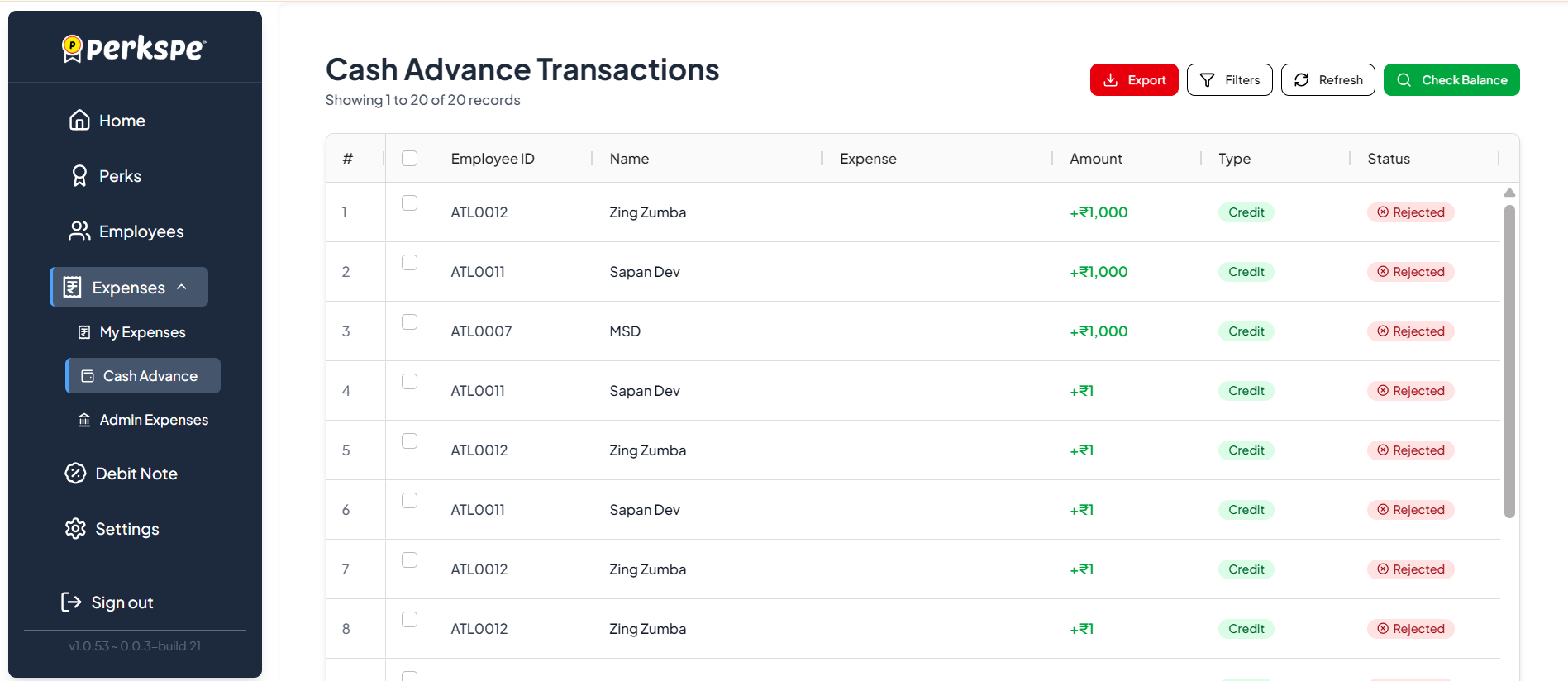
Cash Advance
The Cash Advance feature allows admins to provide advance funds to employees before they incur business expenses. This is useful for travel, events, or any situation where employees need upfront money.
From the sidebar, expand Expenses and click Cash Advance.
The Cash Advance page displays a list of all employees with their current cash advance details.
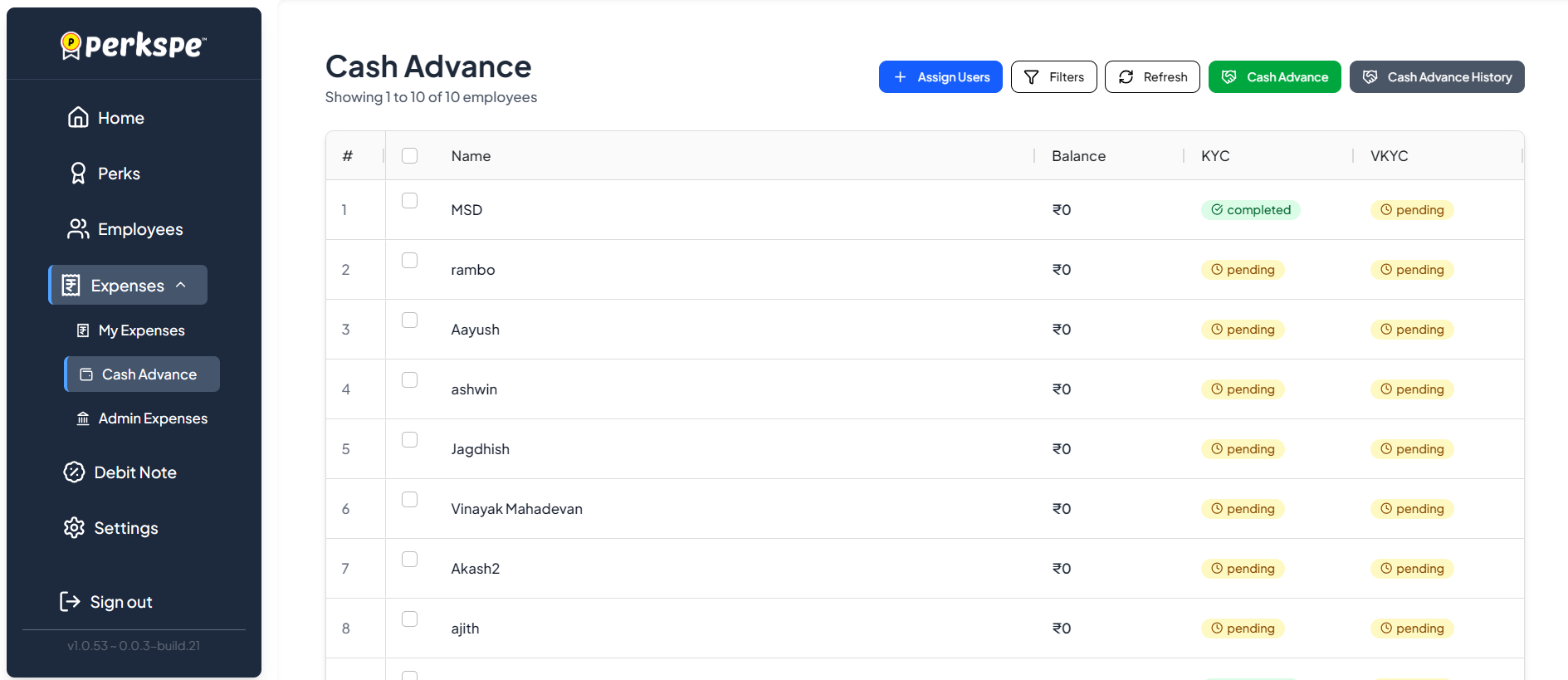
Assign Users
Assign employees to the Cash Advance module so they can receive funds.
Issue Advance
Initiate a new cash advance for selected eligible employees.
History
View the history of all cash advance transactions.
Step 1: Assign Users
Before issuing a cash advance, you need to assign employees to the Cash Advance module.
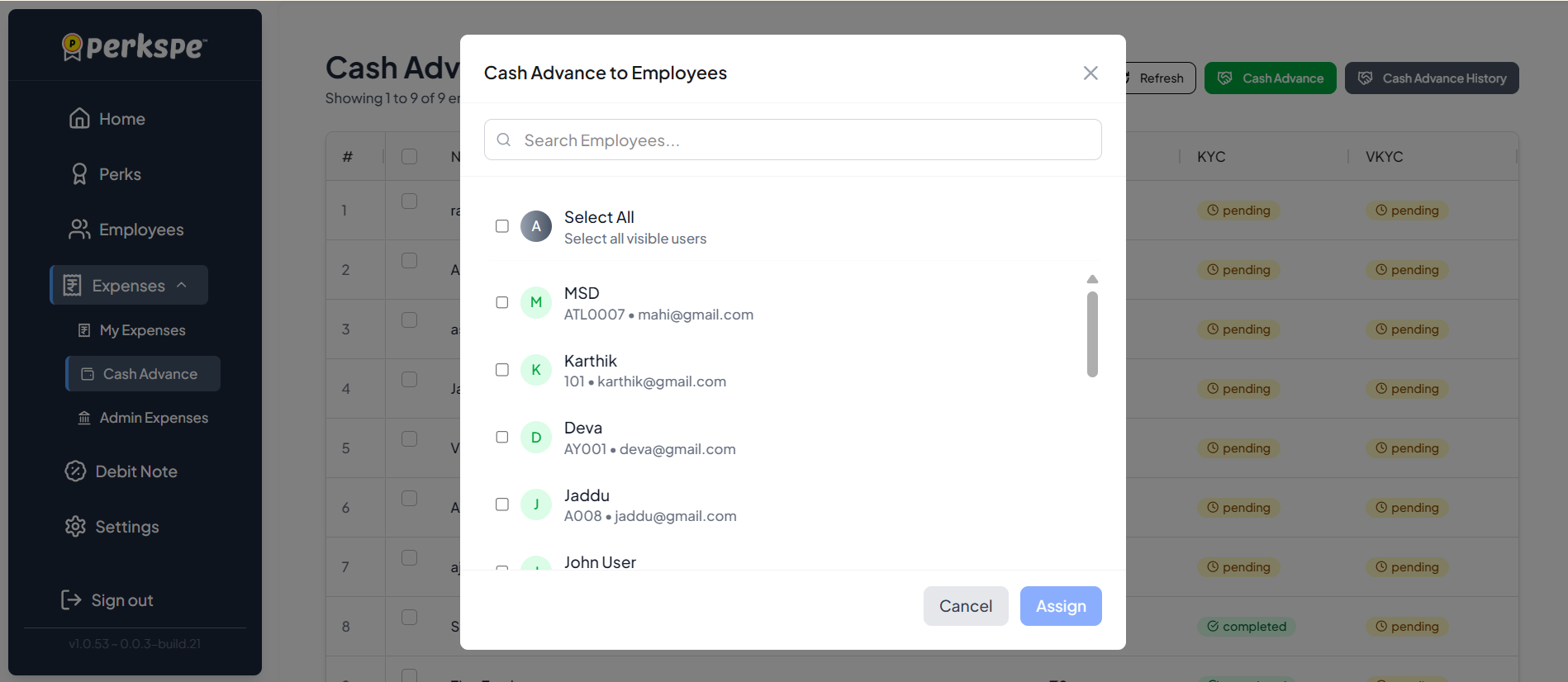
- Click the + Assign Users button at the top.
- Use the Search Employees bar to find specific employees.
- Select employees by checking the checkbox next to their name.
- Click Assign to add the selected employees.
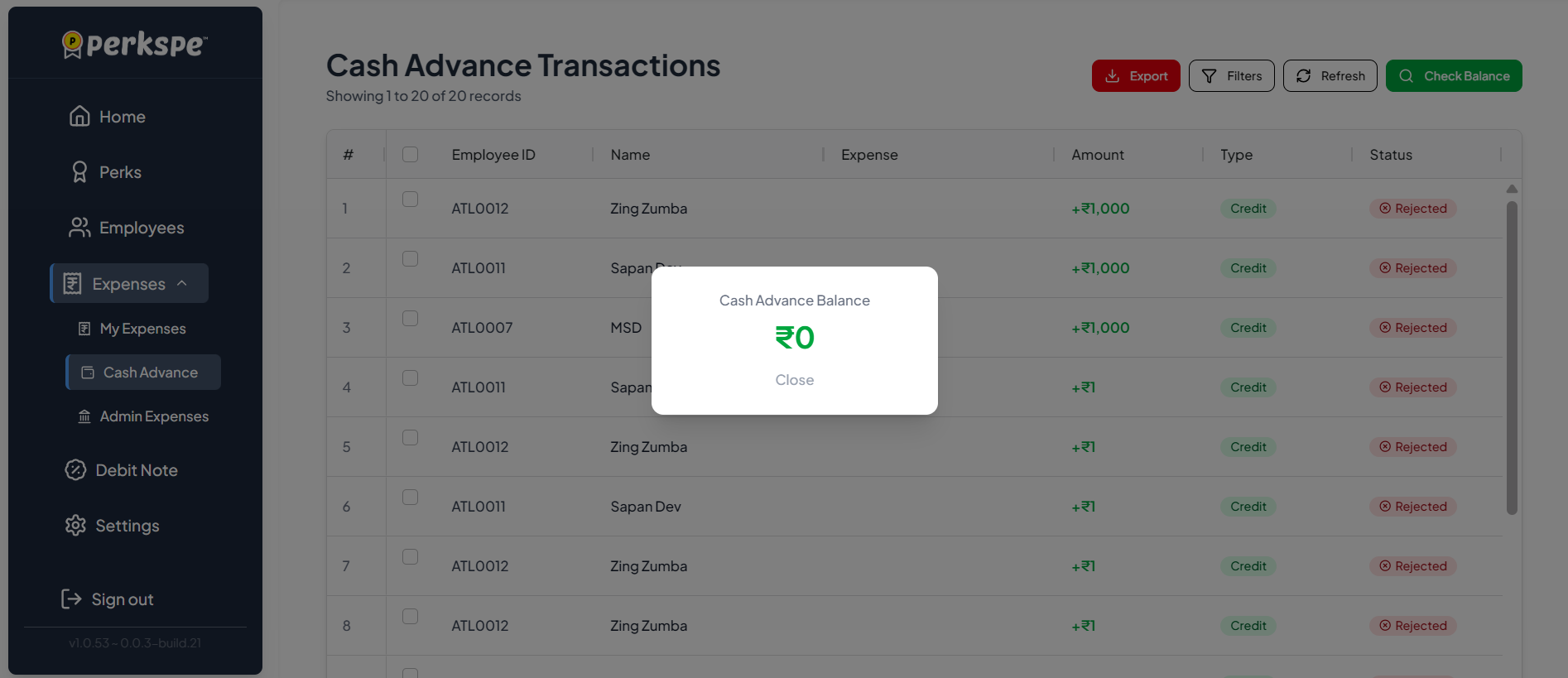
When an employee is assigned to the Cash Advance module, their Cash Advance balance is initialized to ₹0. After assignment, you can update the employee's cash advance amount before issuing the advance.
Step 2: KYC Verification Check
When initiating a cash advance, the system checks if the selected employees have completed their KYC verification.
Cash Advance Limits (As per RBI Guidelines):
- MinKYC: Up to ₹10,000
- VKYC (Video KYC): Up to ₹2,00,000
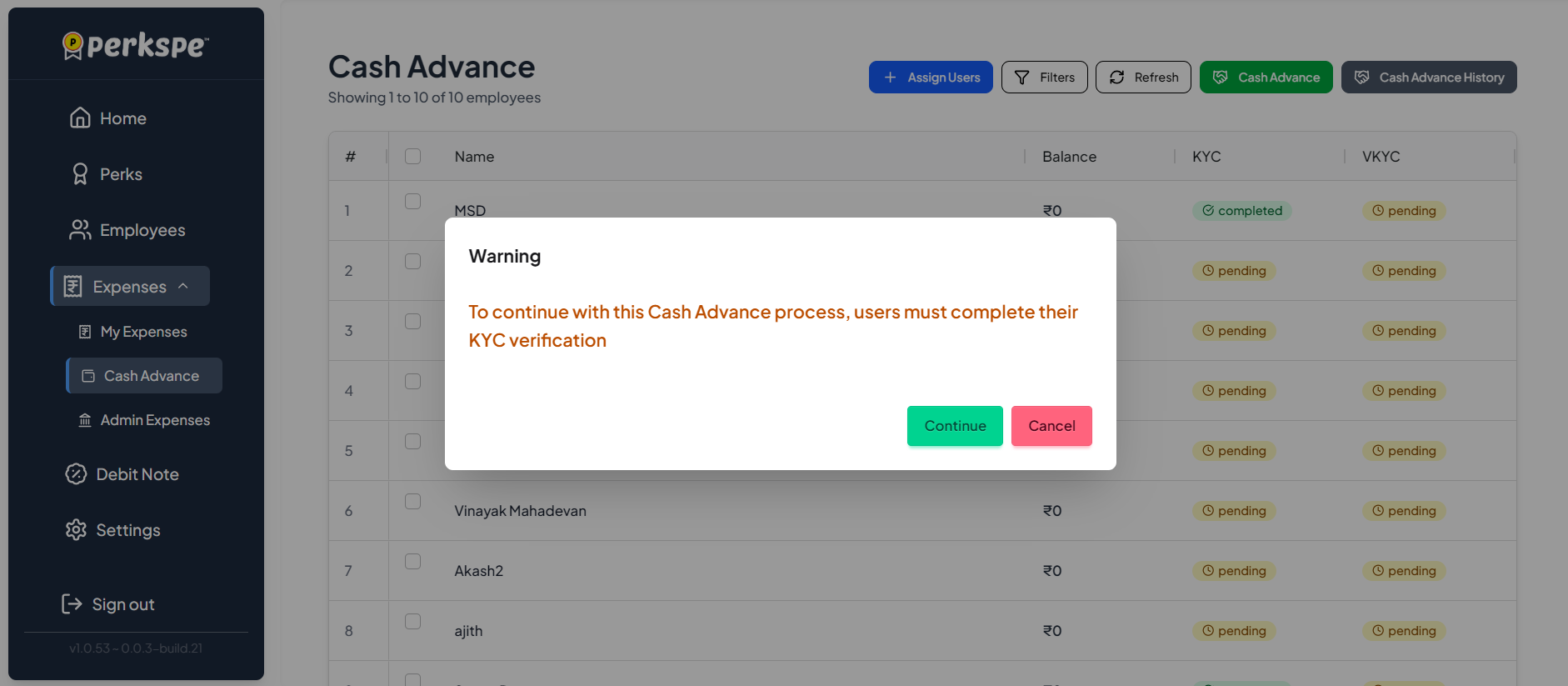
Click Continue to proceed with eligible employees, or Cancel to resolve KYC requirements first. Employees without the required KYC cannot be assigned a cash advance amount.
Step 3 & 4: Select Employees and Enter Amounts
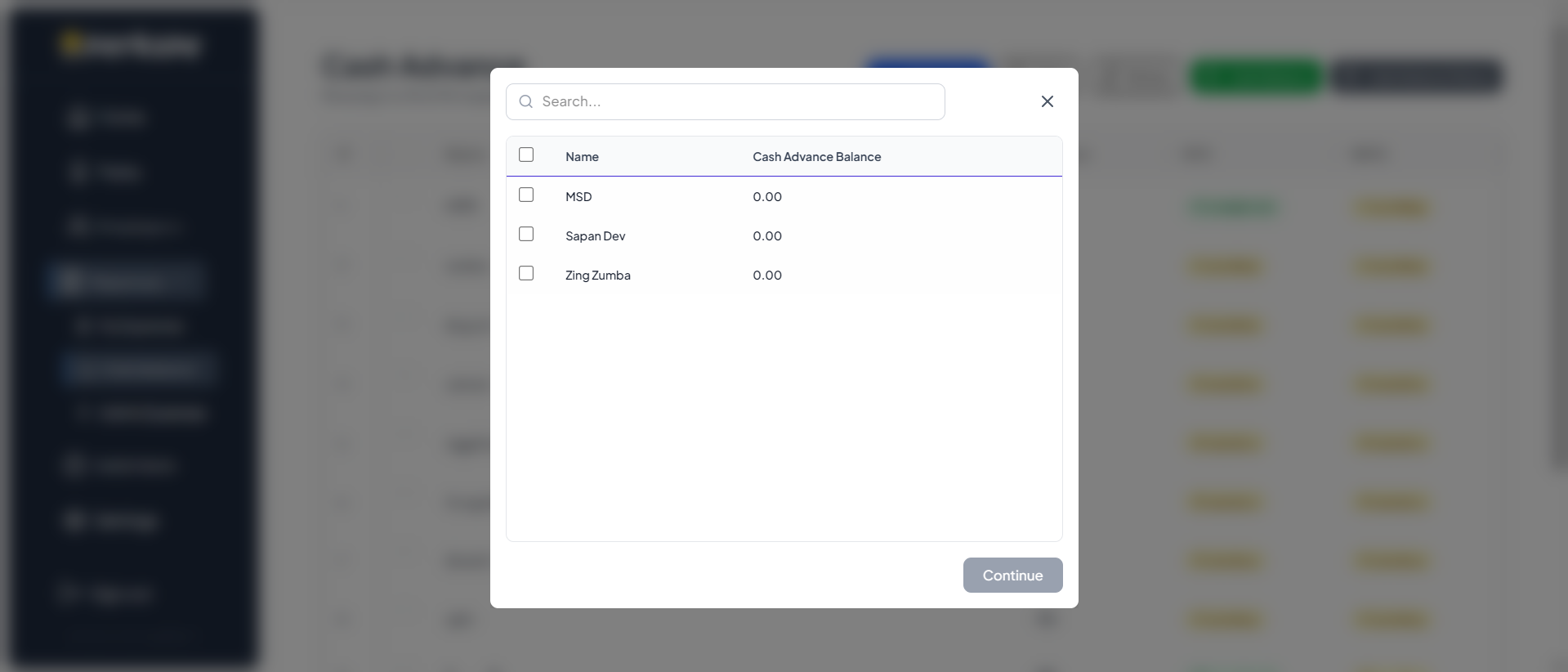
- After clicking the Cash Advance button, select the employees who have completed MinKYC or VKYC.
- Click Continue to proceed.
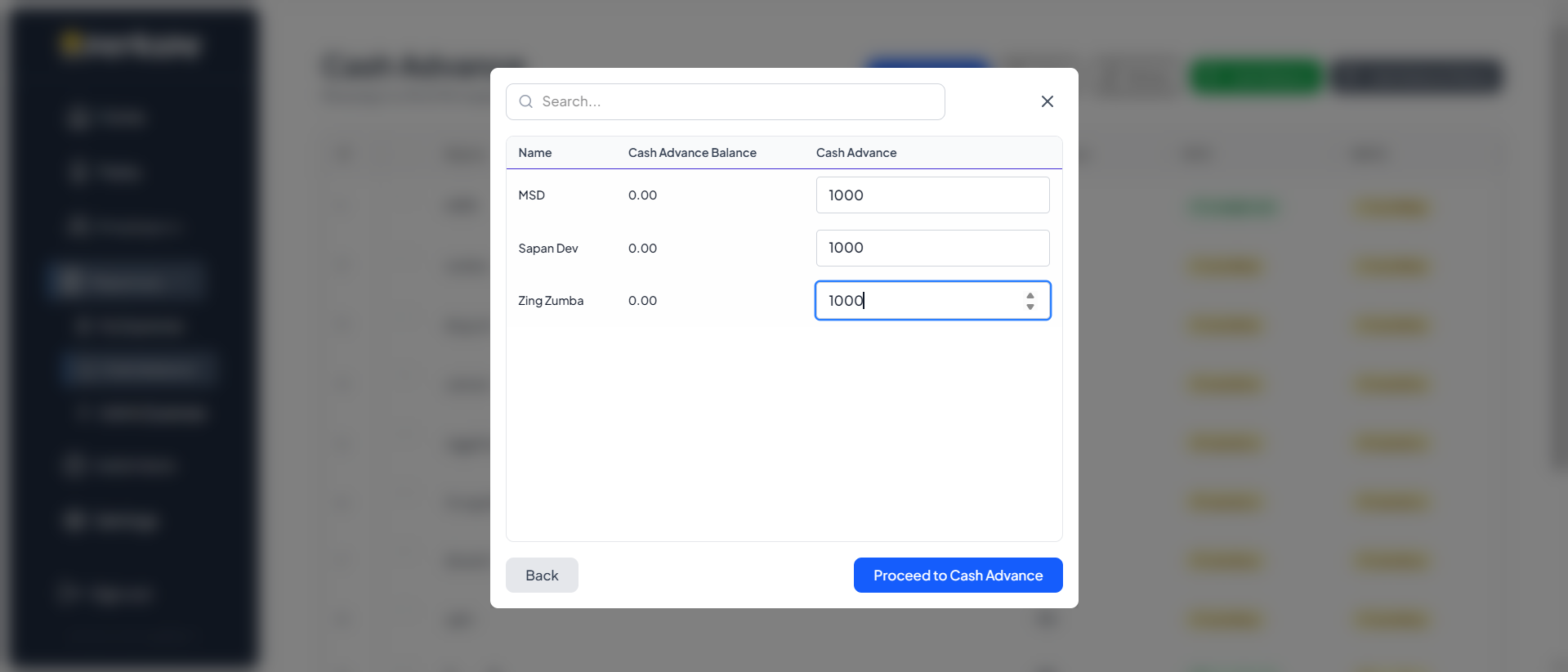
- Enter the desired cash advance amount for each selected employee in the input field.
- Click Proceed to Cash Advance to review and confirm.
Step 5: Confirm Cash Advance
A confirmation dialog appears showing a summary of all cash advances to be issued.
Review the details carefully. Once approved, the cash advance will be instantly credited to the employees' wallet.
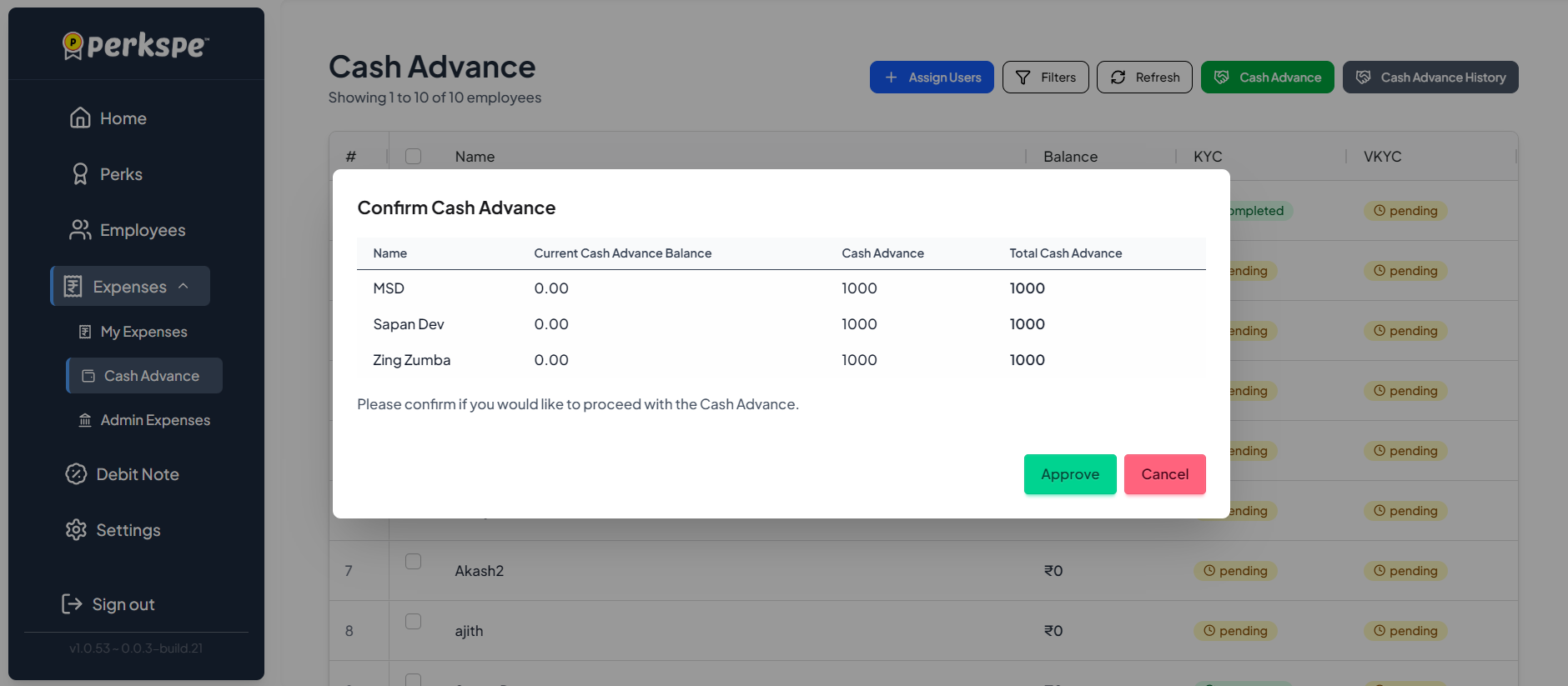
Click Approve to confirm and process the cash advance.